Levanta AI Integration: Setup Guide for Claude & ChatGPT
Last updated: June 17, 2026
You can now connect your Levanta account to Claude or ChatGPT and ask questions about your data — your brands, creators, products, and performance — in plain English, without opening the dashboard.
For example, you can ask "What are my top products by commission this month?" and get a direct answer from your Levanta data, right inside your AI assistant.
You sign in with your existing Levanta account (OAuth — no API keys needed), so the assistant only ever sees the data you already have access to. The connector is read-only and respects your team membership and roles. There is also a new page in Levanta Settings to manage MCP connections for your team.
Before You Connect
During setup, you may be asked for the Levanta server address. Copy and paste this exactly:
Note: This address is used for both Claude and ChatGPT. If a connection ever fails, the first thing to check is that this address was entered correctly, with no extra spaces.
Connect with Claude
This works in both the Claude desktop app and on claude.ai in your browser.
Step 1: Add Levanta as a connector
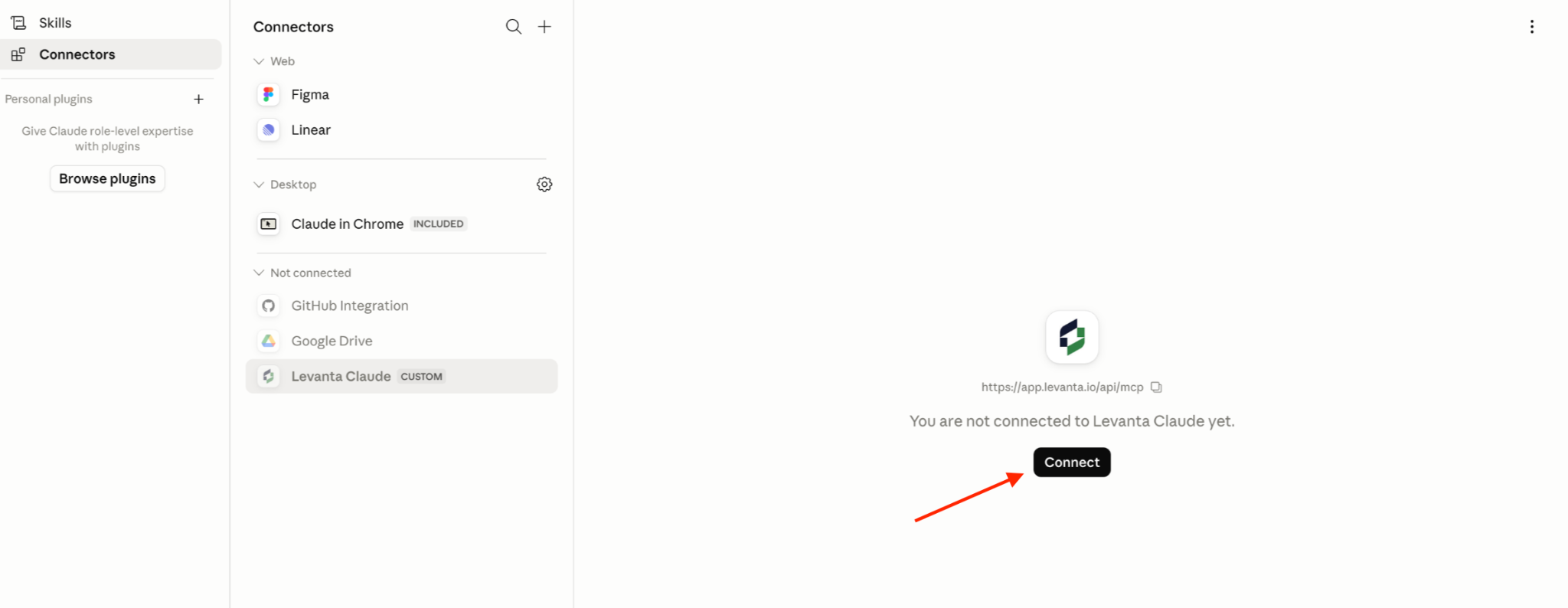
Click Customize in the left sidebar, then select Connectors.
Click the "+" button next to Connectors.
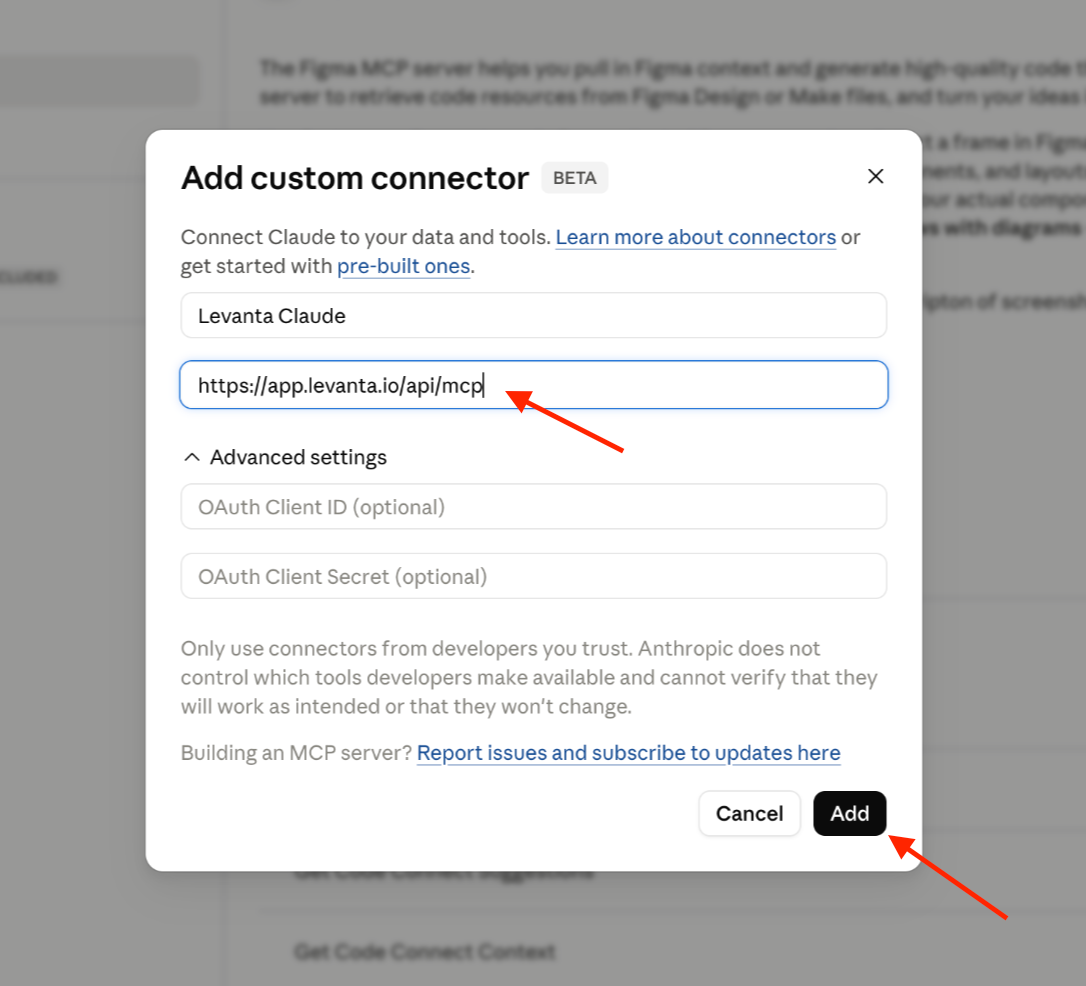
Click Add custom connector.
Enter a name (e.g. Levanta) and paste the server address into the URL field: https://app.levanta.io/api/mcp
Click Add to save it.
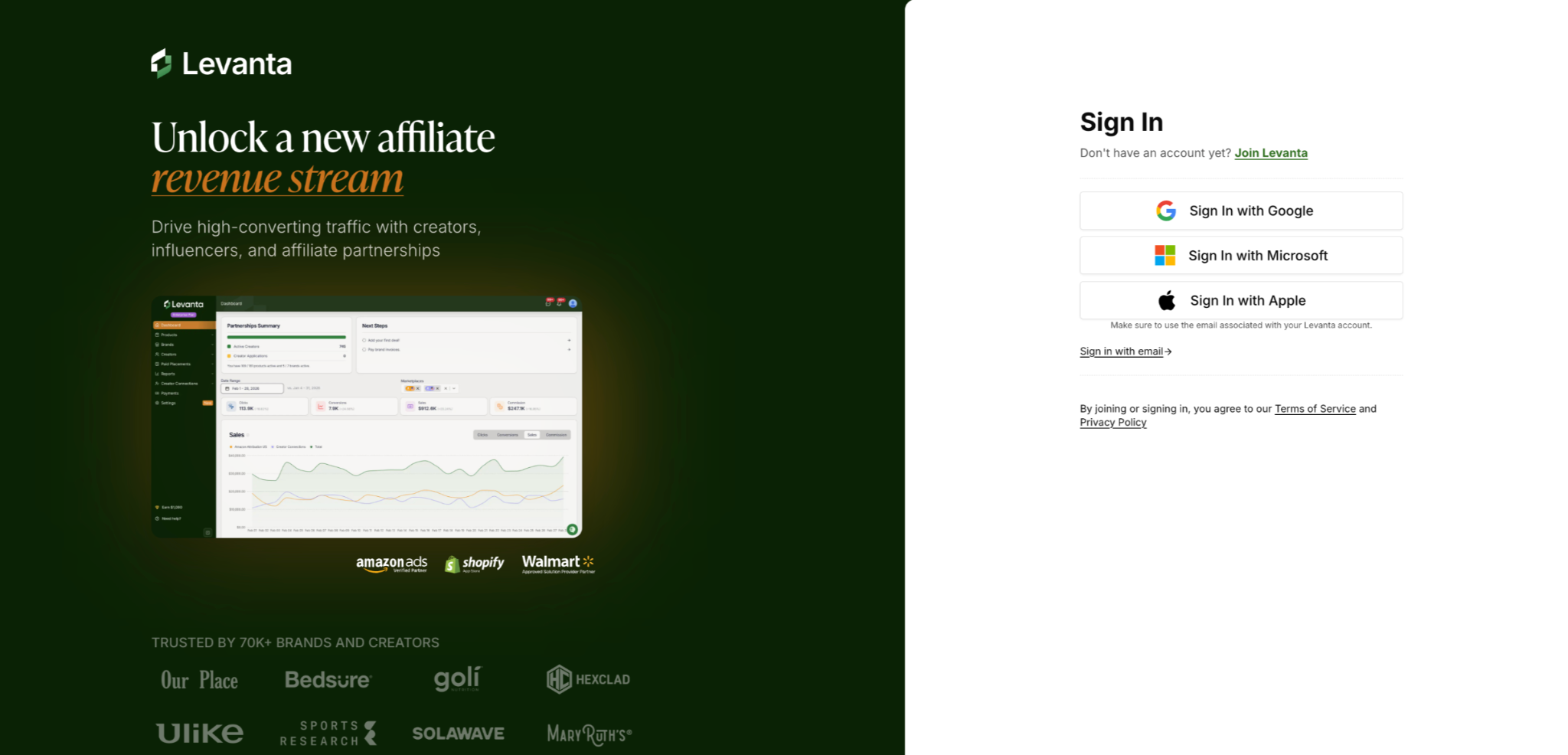
When prompted, sign in to your Levanta account to finish connecting.
Note: This must be done via Claude Web or Desktop — custom connectors cannot be added from the mobile app. A Pro, Max, Team, or Enterprise plan is required.
Step 2: Turn it on in a chat
In any conversation, click the + button.
Choose Connectors.
Switch the Levanta connector on for that chat. You're ready to ask questions.
Note: Custom connectors aren't available on every Claude plan. If you don't see the option, check Anthropic's guide on getting started with custom connectors.
Connect with ChatGPT
Levanta is now available as an official ChatGPT app — no developer mode or custom setup required.
Step 1: Find the Levanta app
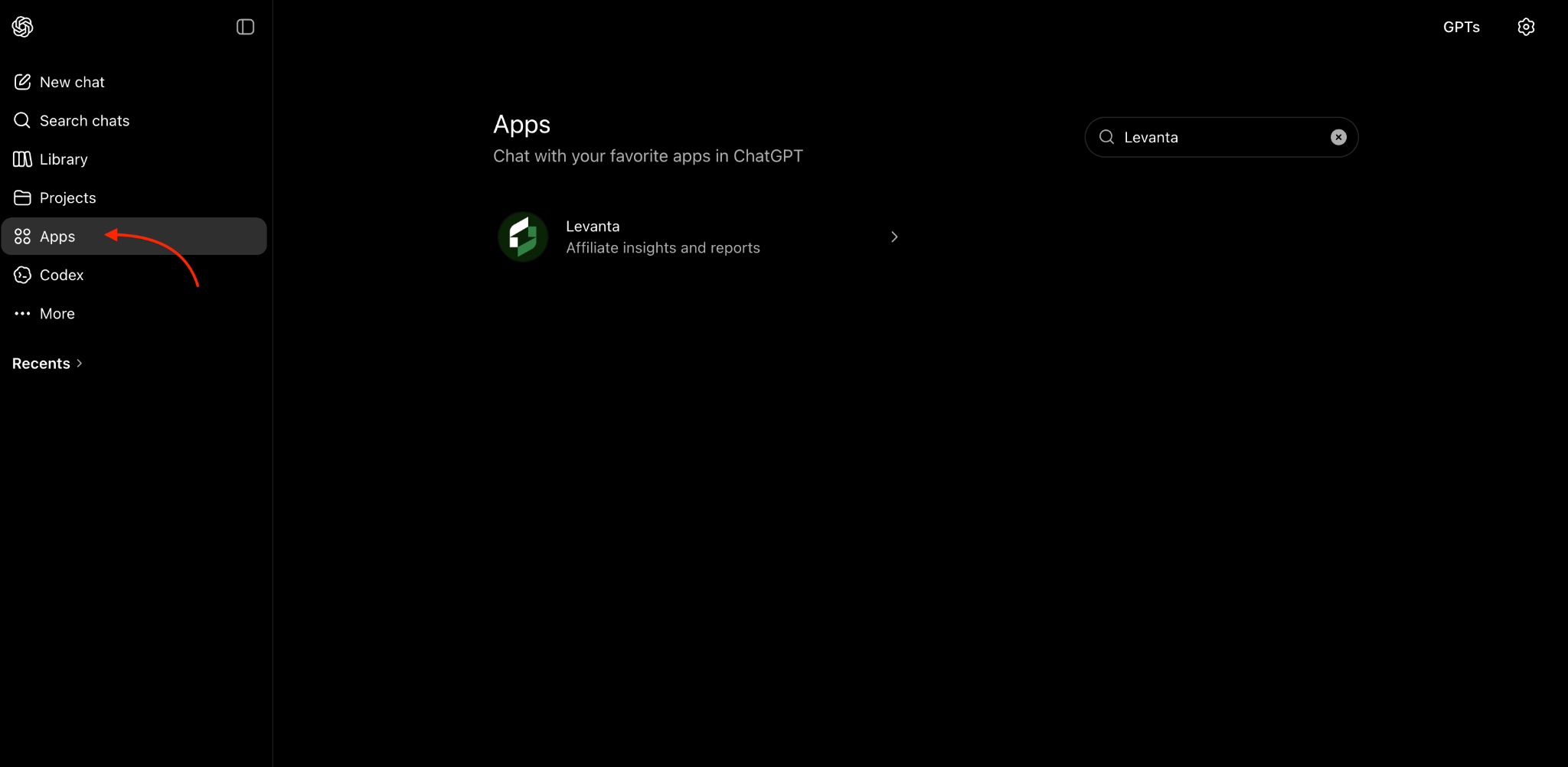
In ChatGPT, click Apps in the left sidebar (or go to chatgpt.com/apps?q=Levanta
Search for "Levanta" in the search bar.
Click on Levanta — Affiliate insights and reports
Click Connect and sign in with your Levanta account when prompted.
Note: Available on Pro, Plus, Business, Enterprise, and Education plans on the web.
Step 2: Use it in a chat
In any conversation, click the + button in the message box.
Select the Levanta app.
Ask your question — you're all set.
Check that it's working
Once connected, send a simple test question:
"Who am I logged in as on Levanta?"
"List all of my brands on Levanta."
If it replies with your own account details and brand list, you're all set.
What you can ask
"Show me the creators currently partnered with my brand."
"Find my top products by commission rate this month."
"Summarize my seller performance totals for the last 30 days."
"Which creators are driving the most sales for my brand?"
"Build a product performance report and highlight my best ROAS products."
What Levanta can read
The connector is read-only — it can look at your data and build reports, but it can never change anything in your account.
Note: Dates are handled in UTC. Phrases like "today" or "last 7 days" use UTC calendar days, which may differ slightly from your local time zone.
If something doesn't work
Restart the app
After adding the connector, closing and reopening Claude or ChatGPT often resolves the issue.
Double-check the server address
Make sure it reads exactly: https://app.levanta.io/api/mcp — no extra spaces or characters.
Sign in again
Sign-in sessions expire over time. Reconnect or re-authorize the Levanta connector to refresh your session.
Confirm your access
The connector only sees what your Levanta account can see. Make sure your account has access to the brands and data you're asking about.
Appendix: Command-Line Tools
Most sellers should use Claude or ChatGPT above. These options are for technical users who prefer working in a terminal.
Claude Code
Confirm Claude Code is installed:
claude --version
Add the Levanta server:
claude mcp add --transport http "levanta" https://app.levanta.io/api/mcp
Start Claude Code:
claude
List your MCP servers:
/mcp
Select Levanta, press Enter, and sign in through the browser.
Codex CLI
Confirm Codex CLI is installed:
codex --version
Add the Levanta server:
codex mcp add levanta --url https://app.levanta.io/api/mcp
Sign in through the browser when prompted.
Start Codex and list your MCP servers:
codex/mcp
Levanta should show as listed, enabled, and authenticated.
Questions or Need Help?
Our team is here to support you! Reach out to your dedicated CSM or email us at cs@levanta.io