Managing Brands & Products in Levanta
Last updated: August 7, 2026
How to Activate, Disable, Archive, and Manage Your Brands and Products
This guide walks you through the key actions to manage your brands, products, and storefronts in the Levanta platform.
Activating Your Brand
After filling out your Brand Detail Page, follow these steps to make your brand visible to creators:
Steps:
Navigate to Brands from the left-hand menu.
Click on the brand you want to activate.
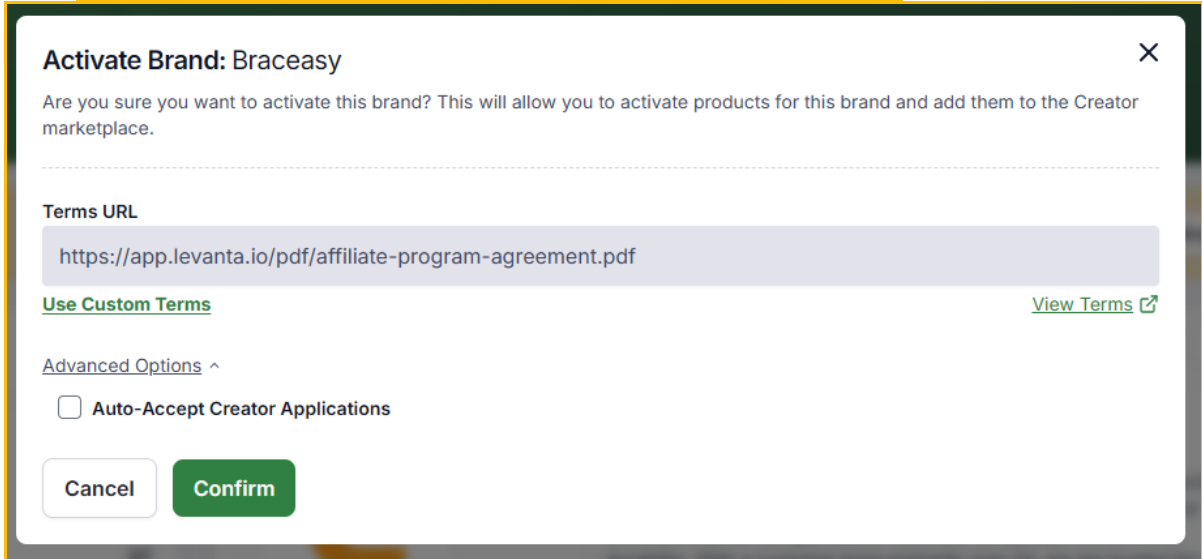
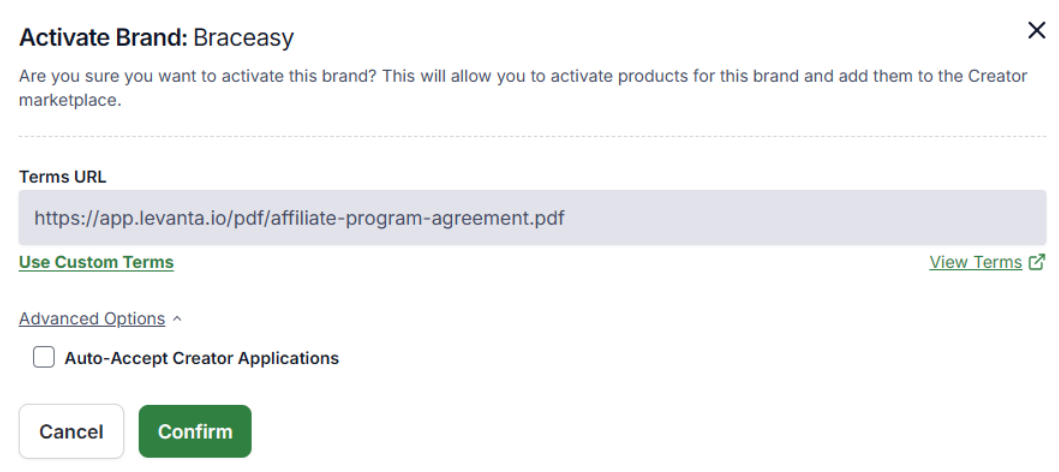
Click the "Activate" button to launch the activation widget.
Review Affiliate Program Terms:
You can use Levanta’s default affiliate terms or choose “Use custom terms” to link to your own hosted terms.
Acknowledge the geo-activation notice.
(Optional) Click Advanced Options to turn on Auto-Accept Creator Applications.
Where New Products Appear in Levanta
When new products are added to your store, they may not always appear immediately in your active product list. Depending on your setup, new products will either:
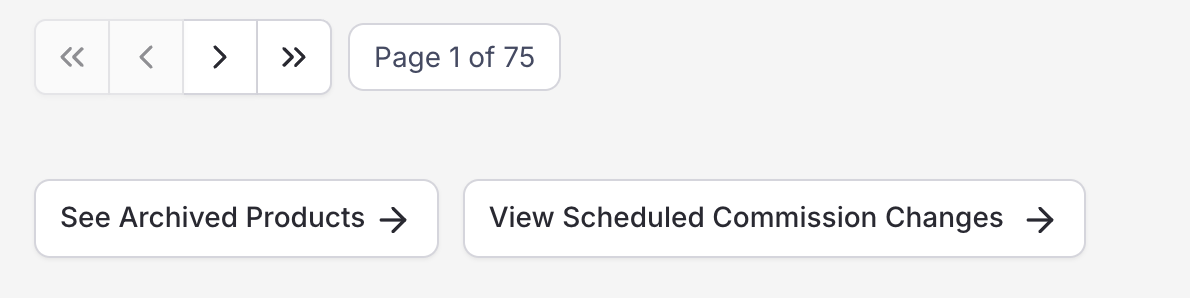
A) Appear under Archived Products, where you'll need to manually unarchive them to make them visible and active, or
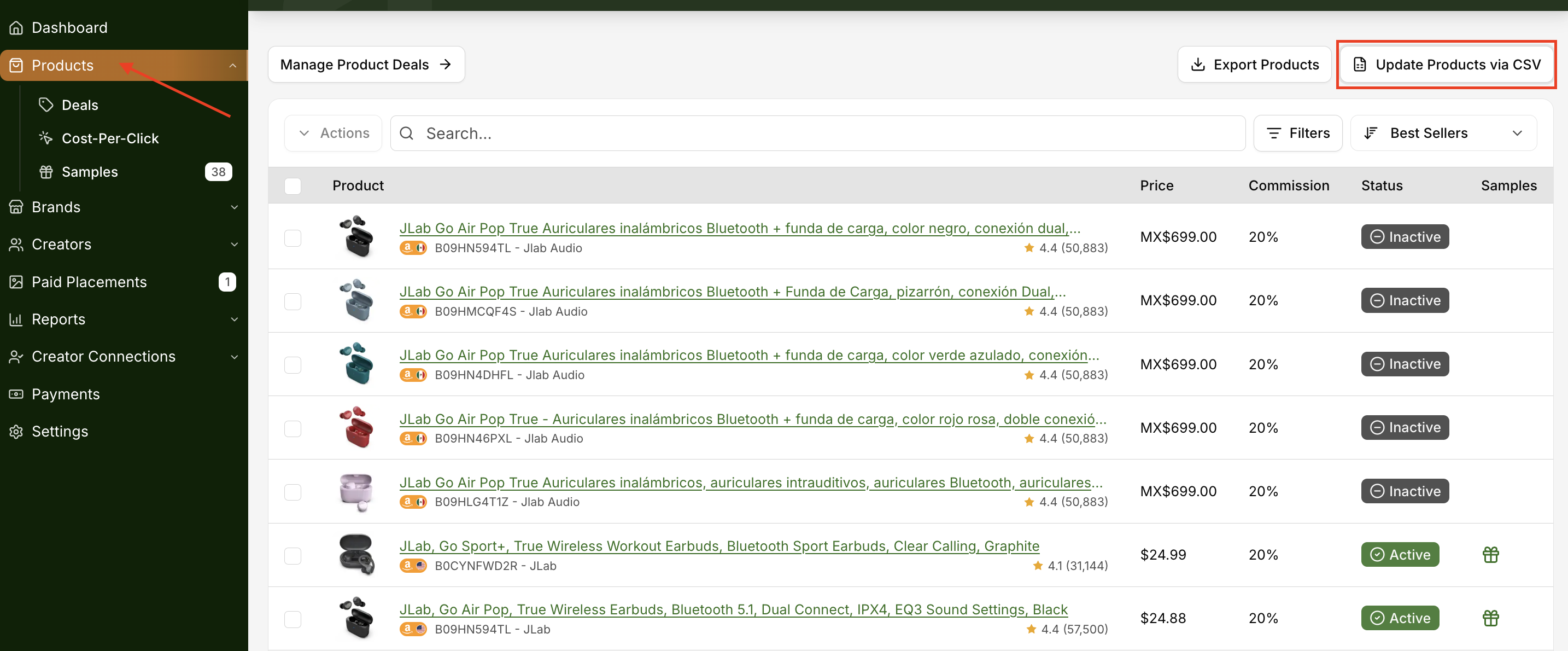
B) Require a manual import using the Update Products via CSV option.
To Manually Import Products
If your new products do not appear under Archived Products, you can manually import them:
Navigate to Products
Click Update Products via CSV at the top right of the page.
Upload your updated CSV file to sync new products into your catalog.
Once imported, they'll display under your active product list.
Deactivating a Brand
Deactivating a brand will:
Cancel all active creator partnerships.
Disable all products under the brand.
Archive existing links.
Remove visibility from the Creator Marketplace.
To Deactivate:
Go to Brands.
Click on the brand you want to disable.
Scroll to the bottom of the brand detail page.
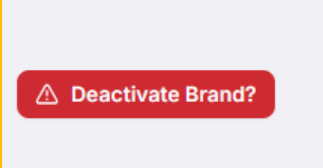
Click "Deactivate Brand".
⚠ Use with caution — This action affects all linked entities.
Archiving a Brand
Archiving hides inactive or unwanted brands (especially those synced from Amazon) from your visible list.
To Archive:
Navigate to Brands.
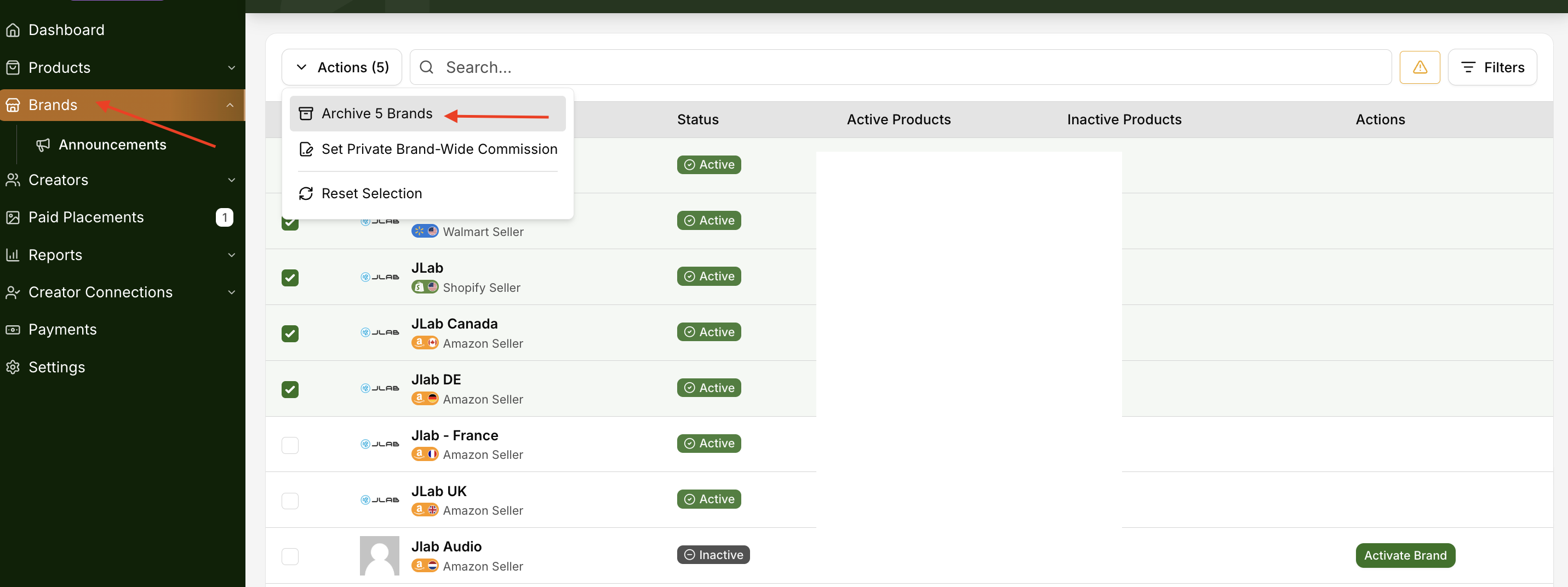
Select the brand(s) you'd like to archive.
Click Actions → Archive Brand.
How to Archive and Unarchive a Product
Levanta gives you the ability to archive products you no longer wish to actively display or manage—and just as easily, unarchive them when needed. Here’s how:
To Unarchive a Product
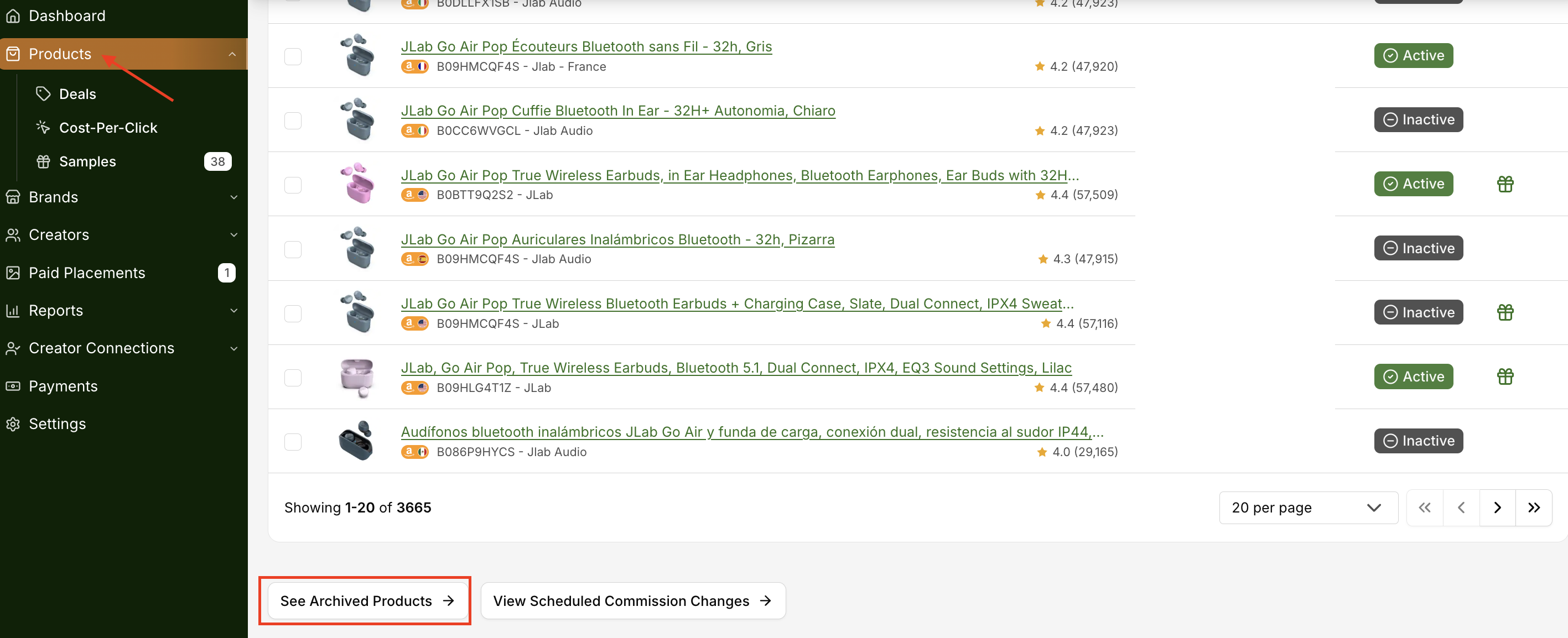
From the Products tab, scroll to the bottom of the product list.
Click on See Archived Products.
Locate the archived product(s) you'd like to restore.
Select the checkbox and click Unarchive under the Actions menu.
To Archive a Product
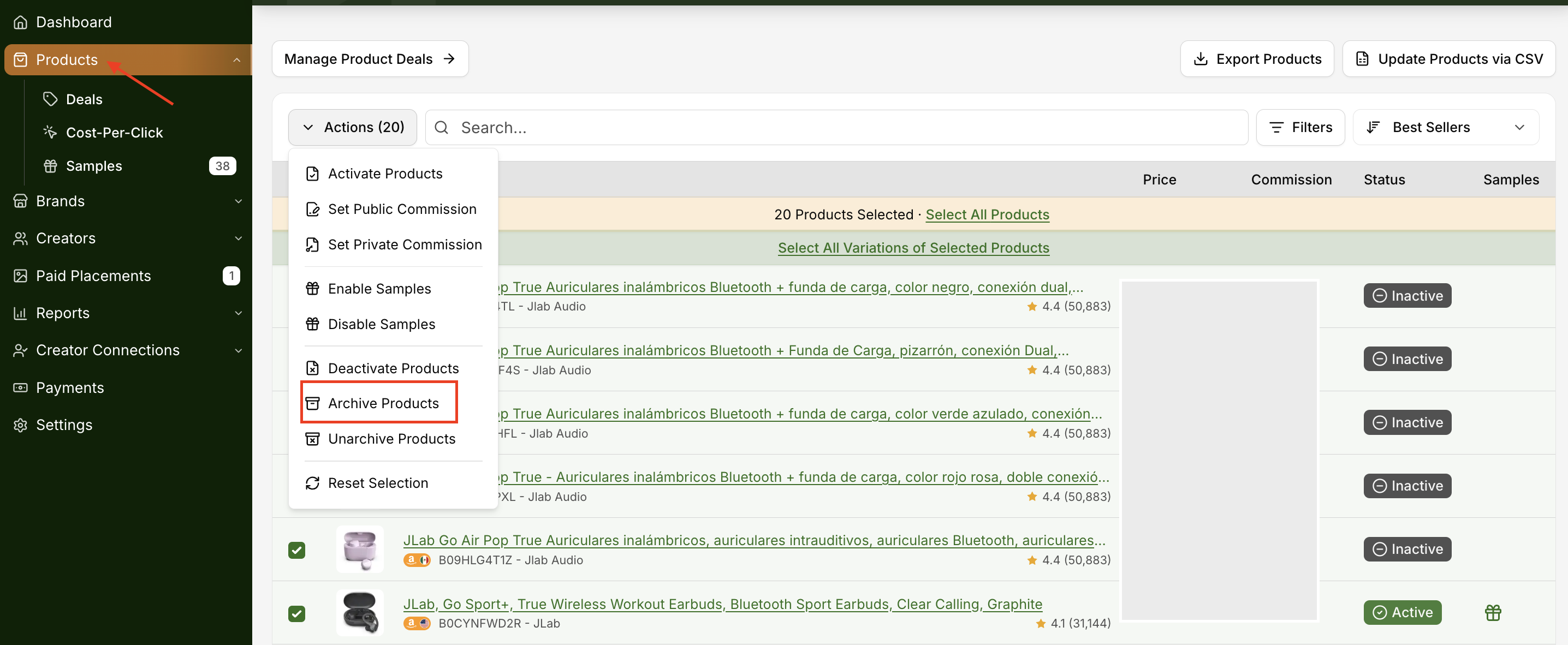
Navigate to the Products tab in your left-hand menu.
Locate the product you’d like to archive.
Click the checkbox next to the product and choose Actions → Archive Products.
Activating Storefront Pages
Navigate to Brands and select the brand you want to work with. In the “Brand Profile” section, click on the gear icon and choose “Manage Storefronts URL” to edit your Storefront settings. You will see a list of your Storefronts pulled in from Amazon. From here you can do the following:.
Toggle ON/OFF to make a page available or unavailable to creators.
Toggle ON/OFF to make a particular page your default main Storefront link.
Questions or Need Help? Our team is here to support you! Reach out to your dedicated CSM or email us at cs@levanta.io