Wayfair Integration: Troubleshooting & FAQ
Last updated: October 7, 2026
This guide covers how to connect your Wayfair account to Levanta and what to check if the connection does not go through.
Connecting Your Wayfair Account
Levanta connects to Wayfair using one-click OAuth authentication via the Wayfair Supplier API. This is what pulls in your catalog, pricing, and discounts, similar to how Seller Central works for Amazon.
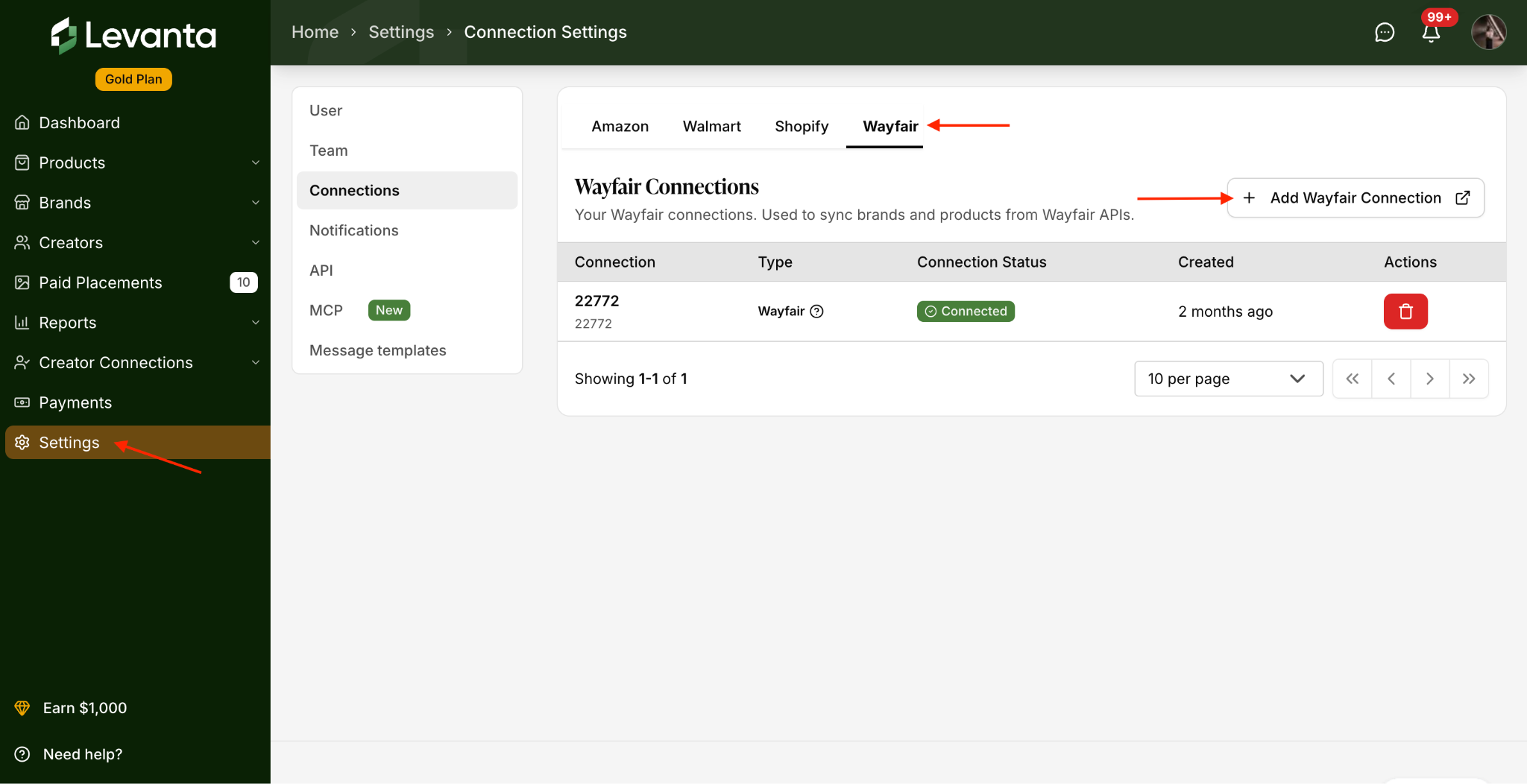
1. Navigate to Settings, then open Connections tab
2. Select Wayfair
3. Click the “Add Wayfair Connection”
4. Follow the prompts to authorize the connection
Once connected, your eligible Wayfair products will begin syncing into Levanta.
⚠ Note: This connection is intended to be a simple, self-serve setup step. No technical work is required from your team.
Troubleshooting: Connection Not Going Through
If the connection is not completing, check the following:
Are you logging in with the correct Wayfair Supplier account credentials?
Are you an admin or top-level user on that Supplier account, or do you have the right permissions delegated to you?
Has your Supplier ID been properly issued by Wayfair? This is the same ID used elsewhere in Wayfair’s Partner API.
In order to have full functionality in the Levanta portal after signing in, your user must have the "API" access role in Partner Home. Your account’s admin user can grant you this access by navigating to the User Management page, editing your user to add the "API" role and clicking “Update User.”
If all three check out and the connection still fails, contact our team so we can investigate on our side.
Troubleshooting: Products Not Appearing
Newly synced Wayfair products appear as Inactive by default. This is intentional, as it gives you time to review the imported data and set your commission rates before products go live for creators.
If your catalog still looks incomplete after connecting:
Confirm the connection shows as active under Settings > Connection tab
Check your Inactive products, then activate the ones you want creators to promote. Creators can only earn commission on products you have activated.
Only eligible Wayfair products sync into Levanta.
If you are an unbranded supplier, your branding will default to Wayfair’s Configuration. You can edit this at any time from your brand profile.
Frequently Asked Questions
Q: Do I need developer help to connect Wayfair?
A: No. The connection is a simple, self-serve setup step using one-click OAuth authentication. No technical work is required from your team.
Q: What does the connection pull in?
A: Your catalog, pricing, and discounts, along with the eligible Wayfair products used to build creator links.
Q: Who on my team can set up the connection?
A: You need to be an admin or top-level user on your Wayfair Supplier account, or have the right permissions delegated to you. On the Levanta side, only account admins can invite additional team members, through Settings. There is no limit on the number of users.
Q: My products are not showing up after connecting. What should I check?
A: Newly synced products appear as Inactive by default, so check there first and activate the ones you want creators to promote. Only eligible Wayfair products sync, and creators can only earn commission on the products you have activated.
Q: I am an unbranded supplier. What branding will creators see?
A: Your branding will default to Wayfair’s Configuration. You can edit it at any time from your brand profile.
Q: Can I connect more than one Wayfair Supplier account?
A: Yes.
Key Notes
Nothing can go live until your payment method is set up, so complete that step before connecting.
Newly synced products default to Inactive, so nothing goes live for creators until you activate it.
Only eligible Wayfair products sync into Levanta, and you choose which of those to activate for creators.
Questions or Need Help? Our team is here to support you! Reach out to your dedicated CSM or email us at cs@levanta.io