Wayfair Reporting Overview: Navigating Levanta's Reports Dashboard
Last updated: October 7, 2026
Levanta's Reports section shows how your Wayfair program is performing, including conversions, sales, commission, and creator activity. The Reports tab is your primary source of truth for program health.
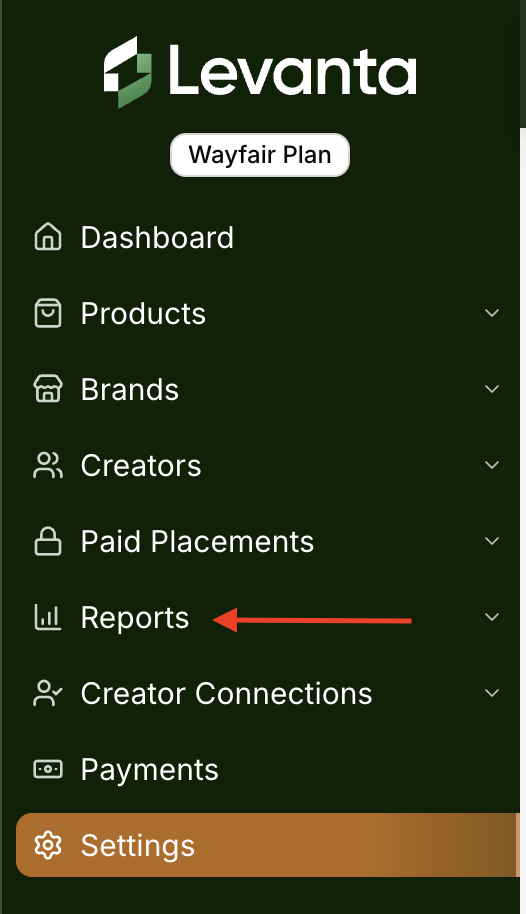
You can access reports from the left navigation menu, then Reports.
Available Reports
Suppliers selling on Wayfair have access to four primary reports.
Report | What It Shows |
|---|---|
Performance Report | Conversions, sales, commission, and ROAS over a selected time period |
Product Report | SKU-level performance, so you can see which products creators are driving |
Creator Report | Which creators are driving volume, and which marketplaces they are gravitating to |
Brand Report | Brand-level sales, ROAS, and commission |
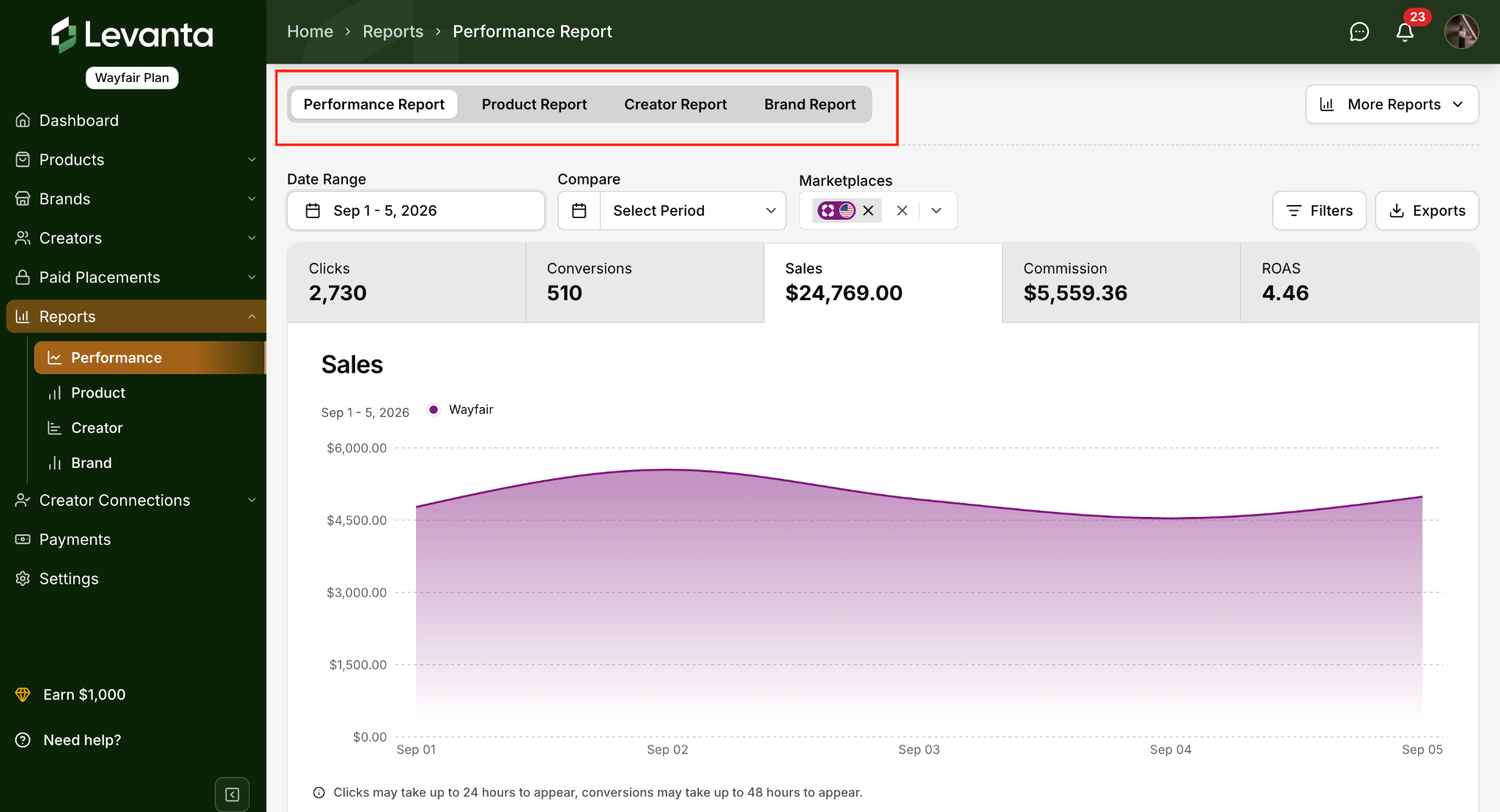
Note: The BRB, Halo, BSR, and CPC reports are Amazon-only and do not apply to Wayfair. If you also sell on another marketplace, you will see those reports for that channel alongside your Wayfair reporting.
Important: Missing Click Data for Wayfair
Wayfair conversions reach Levanta through CJ, and CJ does not pass click-level data to Levanta. This means:
No click counts, click-through rates, or click-to-conversion rates appear for Wayfair links created through CJ in Levanta reporting
Conversions, commission amounts, and order status are reported as normal
If you track click volume in your own performance reporting, you will need to measure it on your own side before the user leaves your property
This is a limitation of the CJ data feed, not of your account setup. Nothing is misconfigured if your Wayfair click figures are empty.
For comparison: Walmart has no minimum click threshold and reports clicks in full. Amazon Attribution requires 10 clicks per link before unlocking conversion data.
Selecting Wayfair
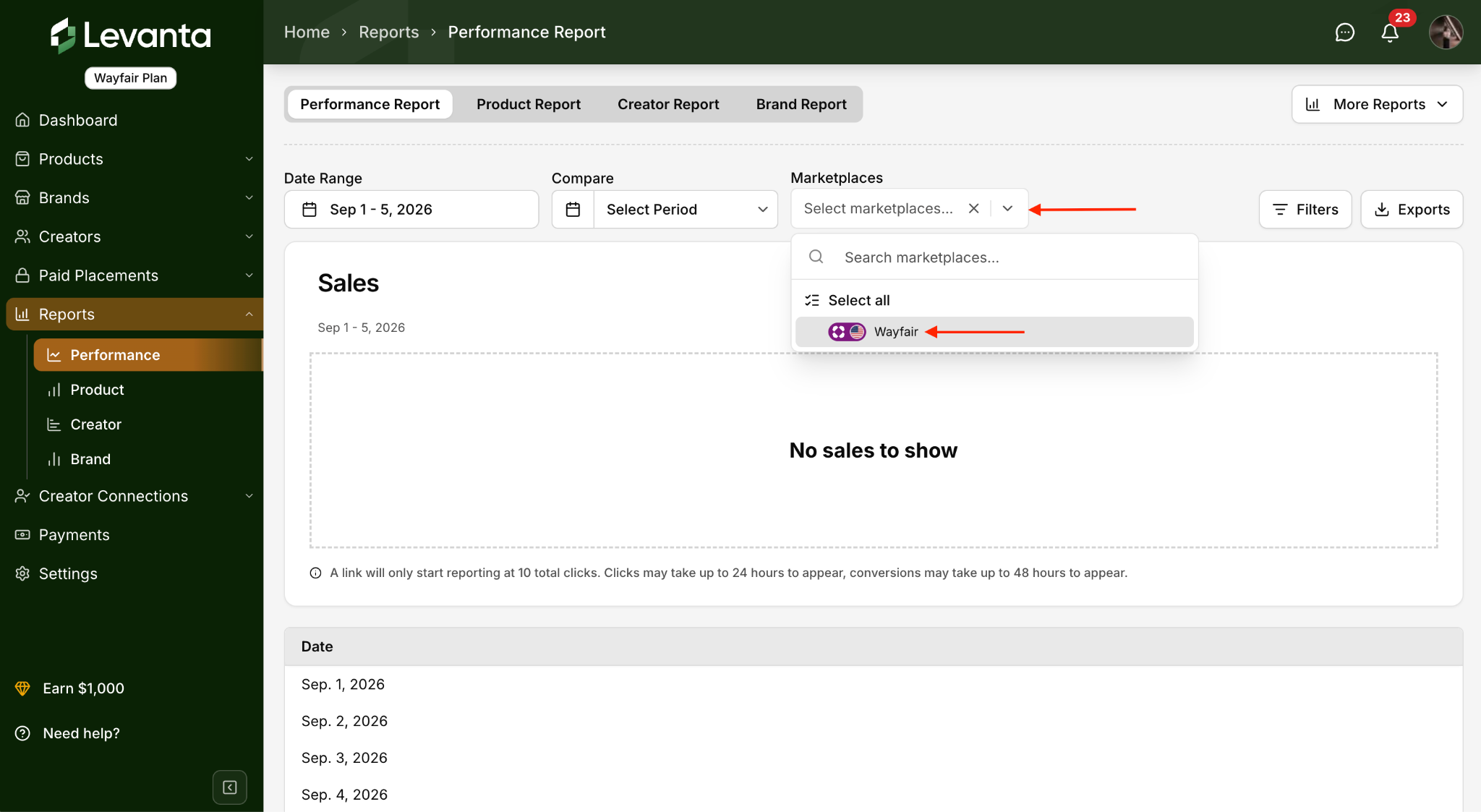
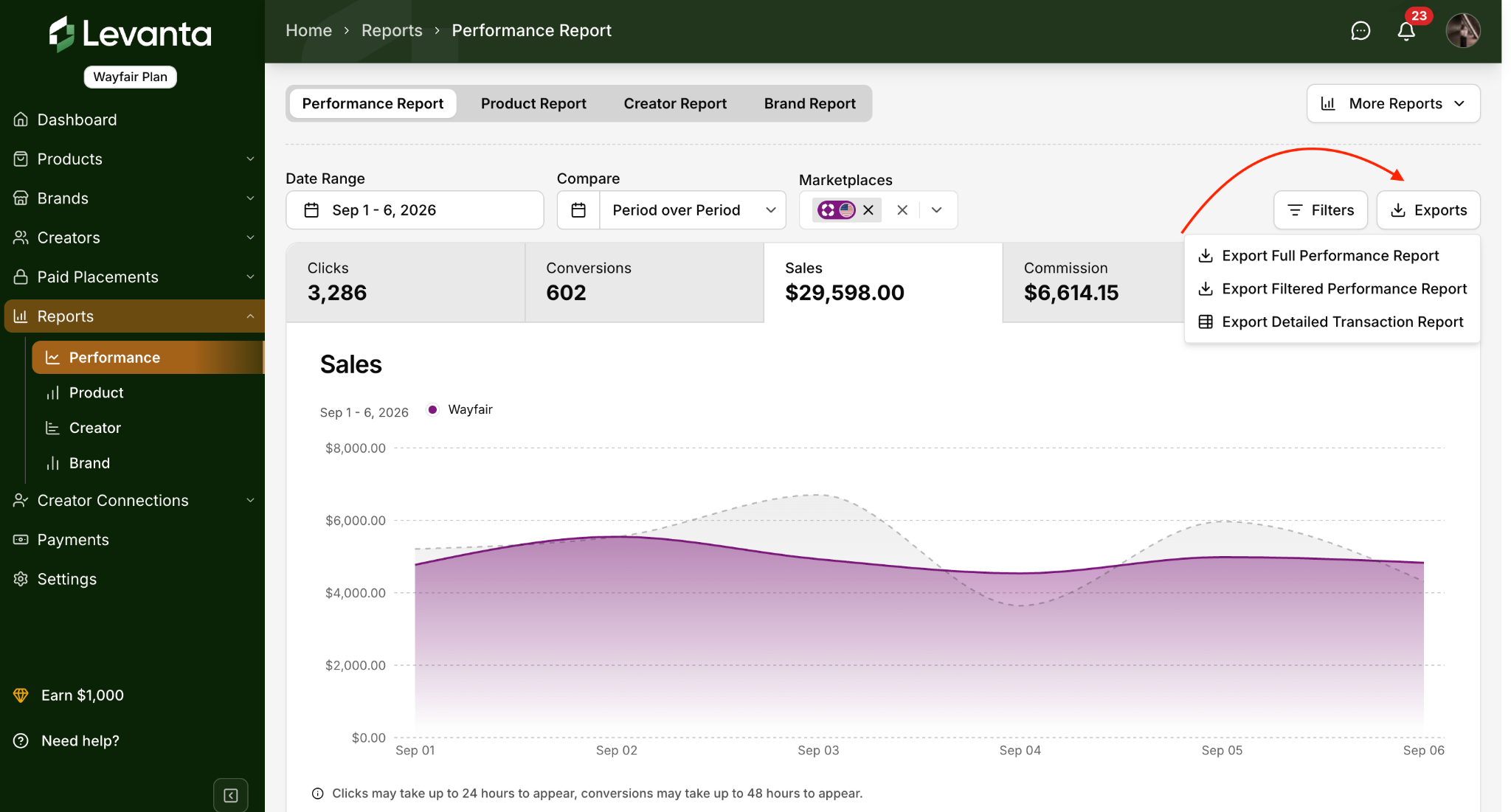
Use the Marketplace dropdown to filter report data by the platform where the activity occurred. Select Wayfair to see your Wayfair performance only, or switch between marketplaces to compare channels.
Date Ranges and Comparisons
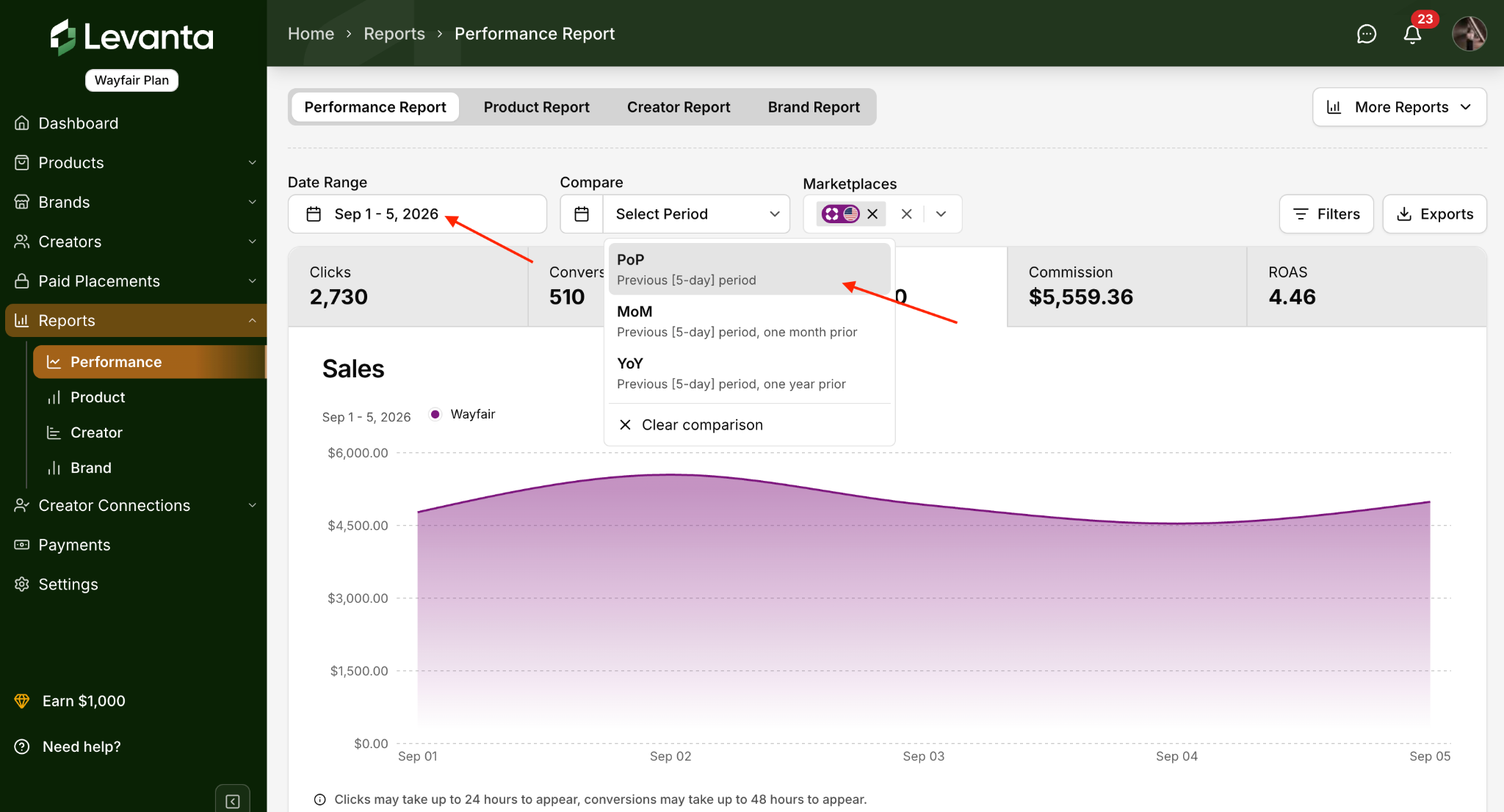
Use the calendar tool at the top of each report to set a custom date range. The Compare dropdown then lets you measure that range against another period, including period over period, month over month, and year over year.
Filters
Click Filters to narrow any report by:
Brand
Product
Source ID
Creator and Creator Group
Exporting Reports
Click Export in the top-right corner of the page and choose Full Performance Report, Filtered Performance Report or Detailed Transaction Report to download a CSV.
When Will I See Reporting?
Wayfair reporting data refreshes on a nightly batch. A sale made today lands in the following morning’s order feed, so expect roughly 24 hours before it appears in your reports.
Conversions typically appear within 24 hours, and may take up to 48 hours.
Real-time reporting is not currently available for Wayfair.
Note: If you are not seeing results right away, please allow time for data to sync.
Questions or Need Help? Our team is here to support you! Reach out to your dedicated CSM or email us at cs@levanta.io