Managing Your Wayfair Brand & Products in Levanta
Last updated: October 7, 2026
How to complete your brand profile, activate your catalog, and get your Wayfair program live
This guide walks you through the steps to set up your brand and activate your Wayfair products in Levanta, so creators and affiliates can discover and promote them.
Complete Your Brand Profile
Your brand profile is visible to creators, influencers, affiliates, and publishers in Levanta. A complete profile helps partners understand your brand and decide which products to promote.
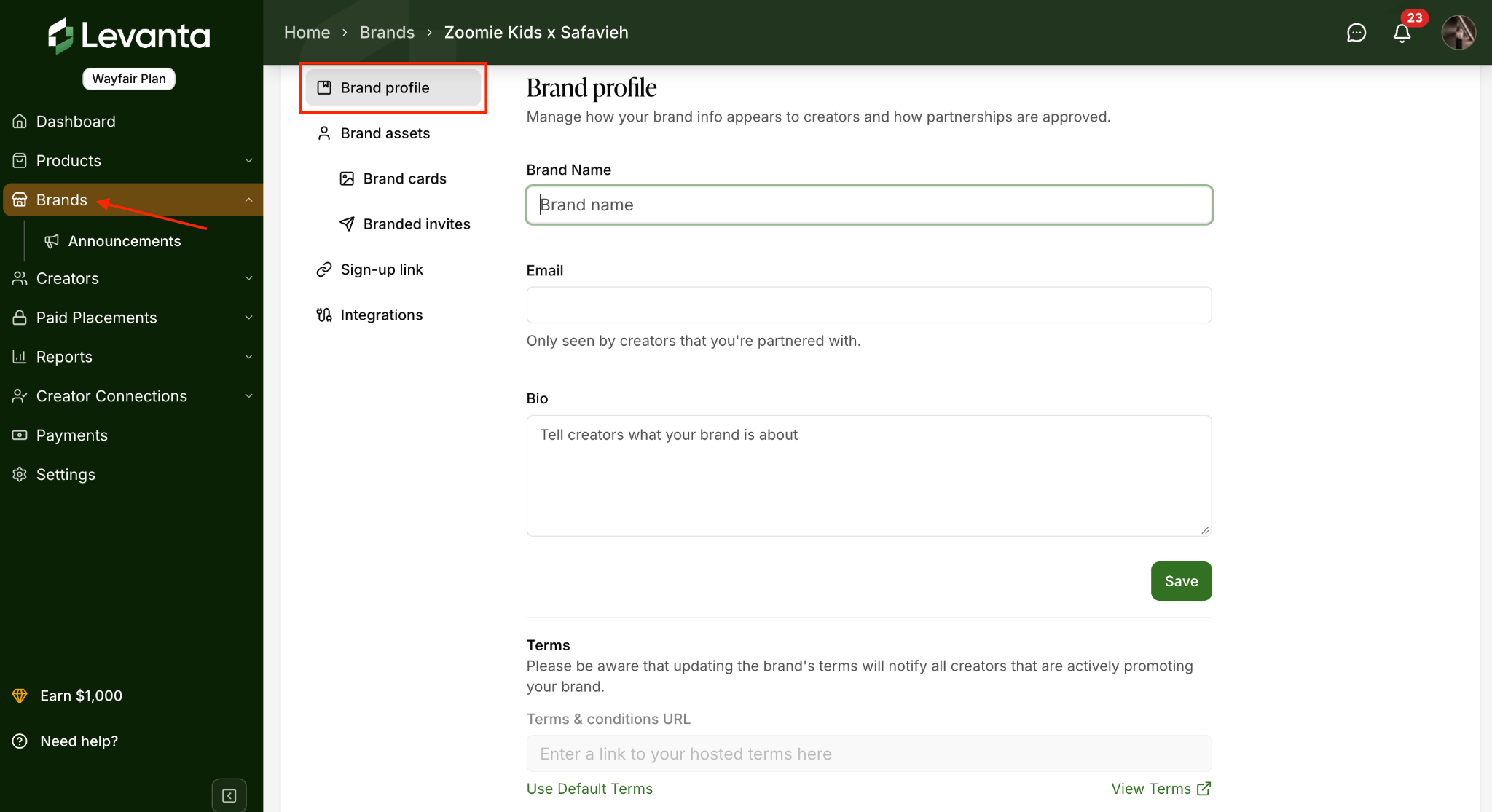
Go to Brands and select your brand, then open Settings. Under Brand Profile, complete the following:
Brand name
Contact email
Brand bio
Terms
Recommendation: Use the brand bio to clearly explain what your brand sells, what makes your products unique, and why creators or affiliates should promote them.
Note: If you are an unbranded supplier, branding will default to Wayfair’s, and you can edit it at any time.
Setting your terms
In the Terms section you can either enter a Terms & conditions URL linking to your own hosted terms, or select Use Default Terms. Click View Terms to review the default terms, then Save.
Note: Updating your brand’s terms will notify all creators who are actively promoting your brand.
Upload Your Brand Assets
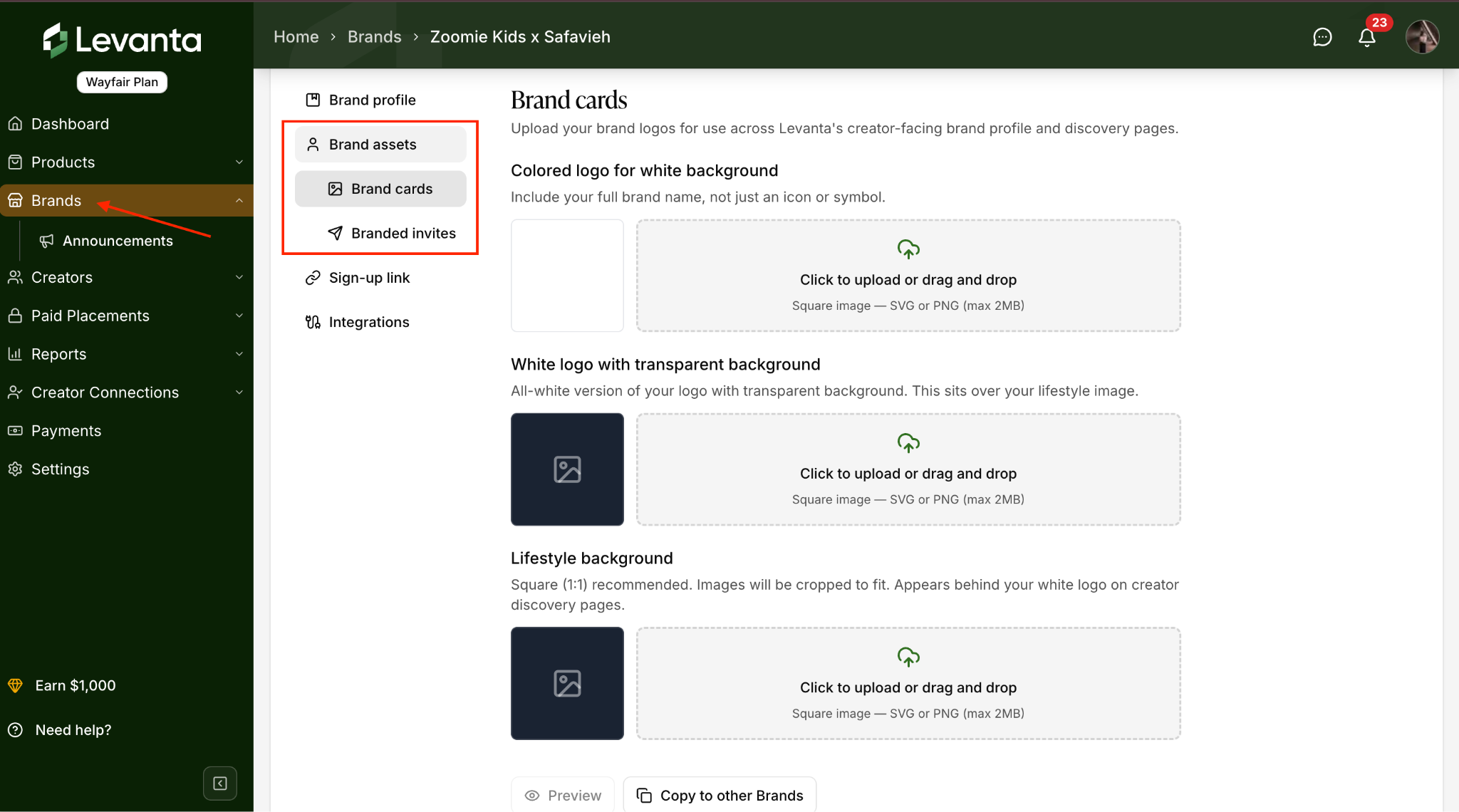
Upload brand assets so your brand is represented clearly in Levanta’s creator-facing experience. This section covers two areas:
Brand cards – Upload your brand logos for use across Levanta’s creator-facing brand profile and discovery pages.
Branded invites – Customize the appearance of your creator signup and invitation pages.
Once uploaded, click Preview to review how your assets appear.
Recommendation: Keeping brand assets up to date can help improve your brand’s visibility and appeal to creators and affiliates.
Configure Creator Approval Settings
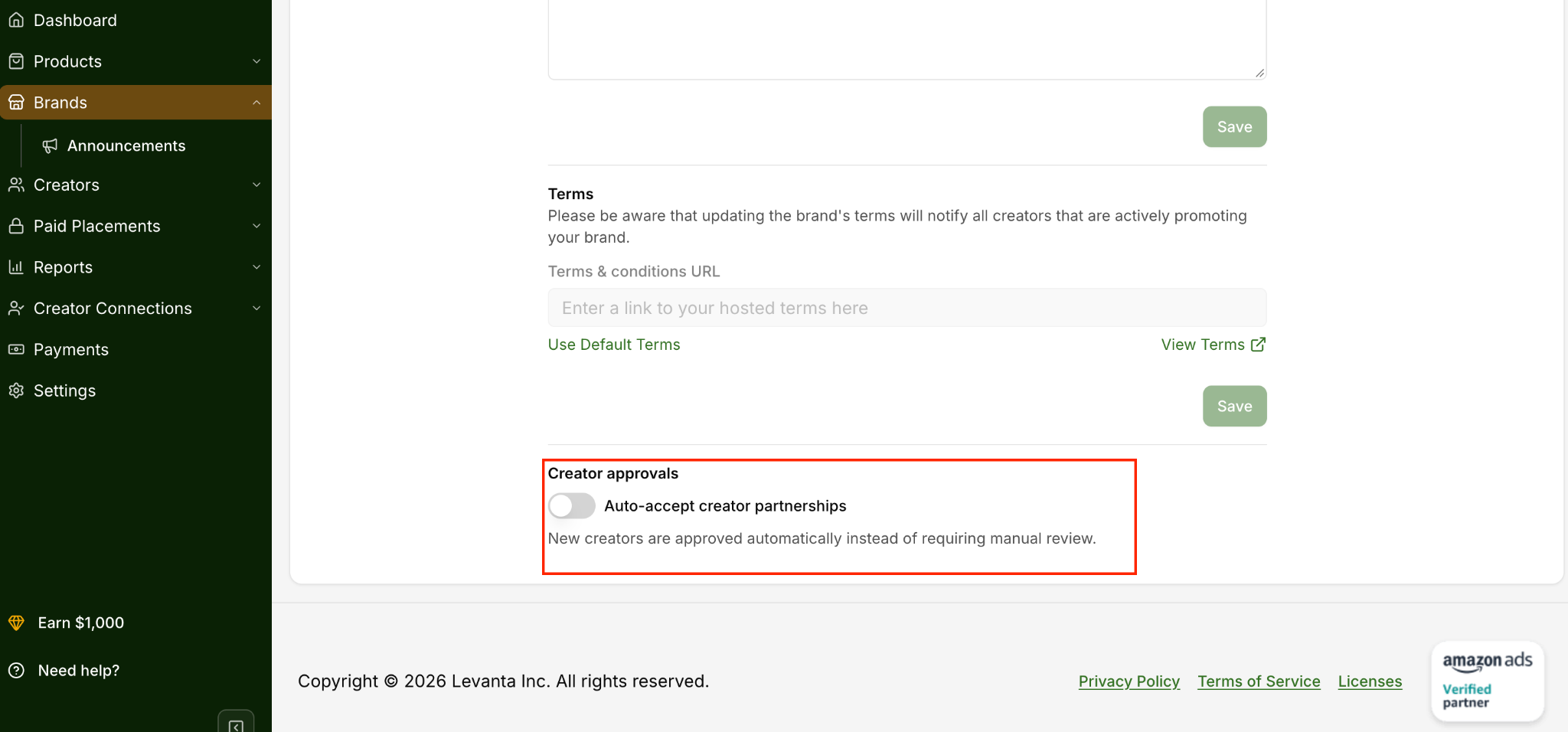
Creator approval settings live at the bottom of the Brand Profile tab, under Creator approvals.
Turn on Auto-accept creator partnerships so new creators are approved automatically instead of requiring manual review. This reduces friction and makes it easier for partners to promote your products.
If your brand requires more control, leave the toggle off and review creator requests from the Applications tab, where you can review, approve, and export pending invitations.
Recommendation: Start with auto-accept enabled unless there is a specific brand safety or approval reason to manually review creators.
Activate Your Brand and Products
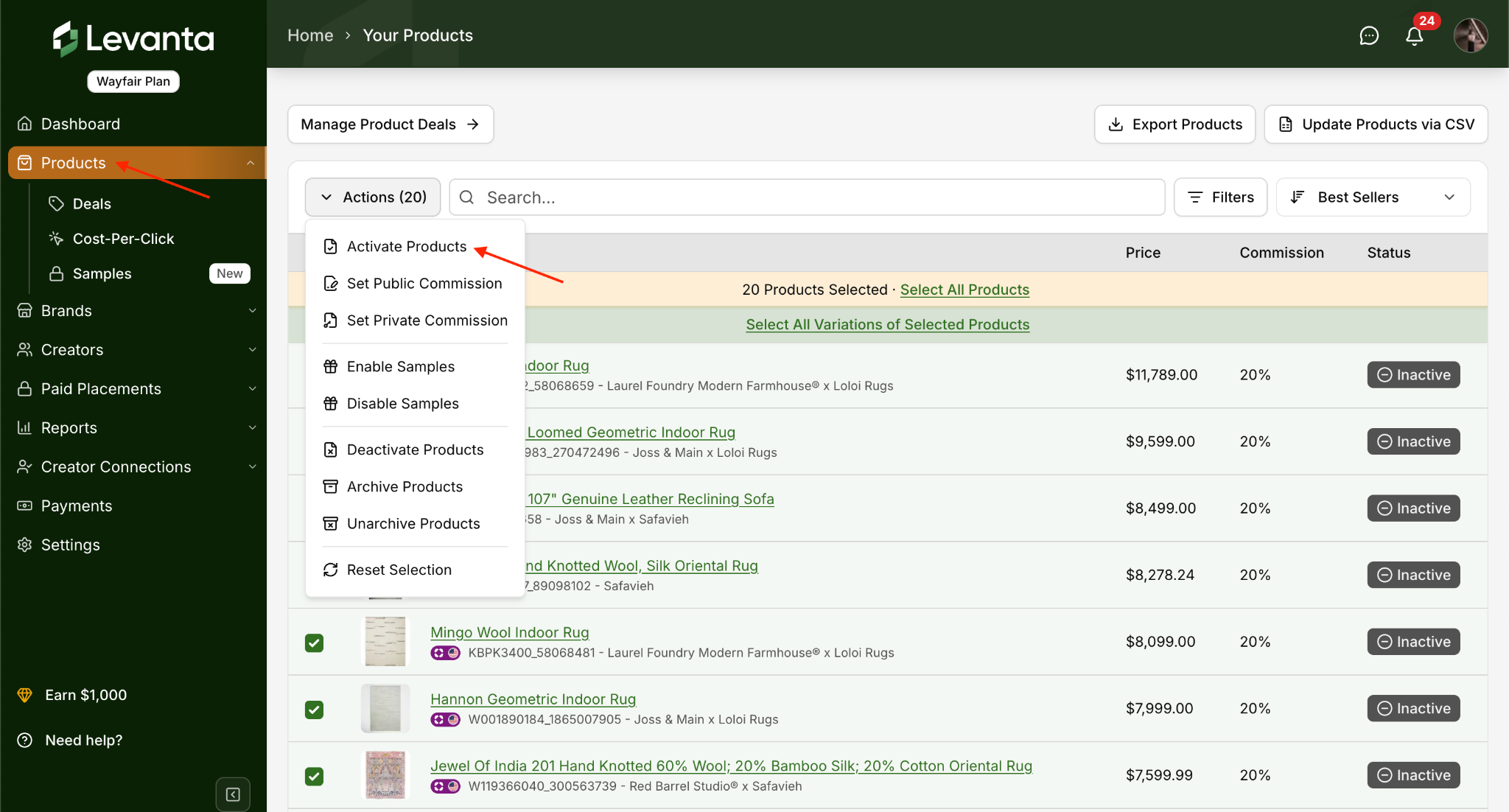
Once your Wayfair catalog has synced into Levanta, review your eligible products and activate the ones you want included in the program.
1. Activate your brand
2. Review your synced Wayfair products
3. Activate the eligible products you want creators to promote
Which products should I activate first?
We recommend activating your full product catalog rather than just a few hero SKUs. When a shopper clicks a creator’s link to one product, they will often browse and buy other active products from your catalog too, but creators only earn commission on the products you have turned on. If only a handful of products are active, creators see limited earning potential and are less likely to invest in promoting your brand.
Recommendation: Prioritize your bestsellers with a higher commission to catch creator attention, and keep the rest of the catalog active at a lower base rate.
Where New Products Appear
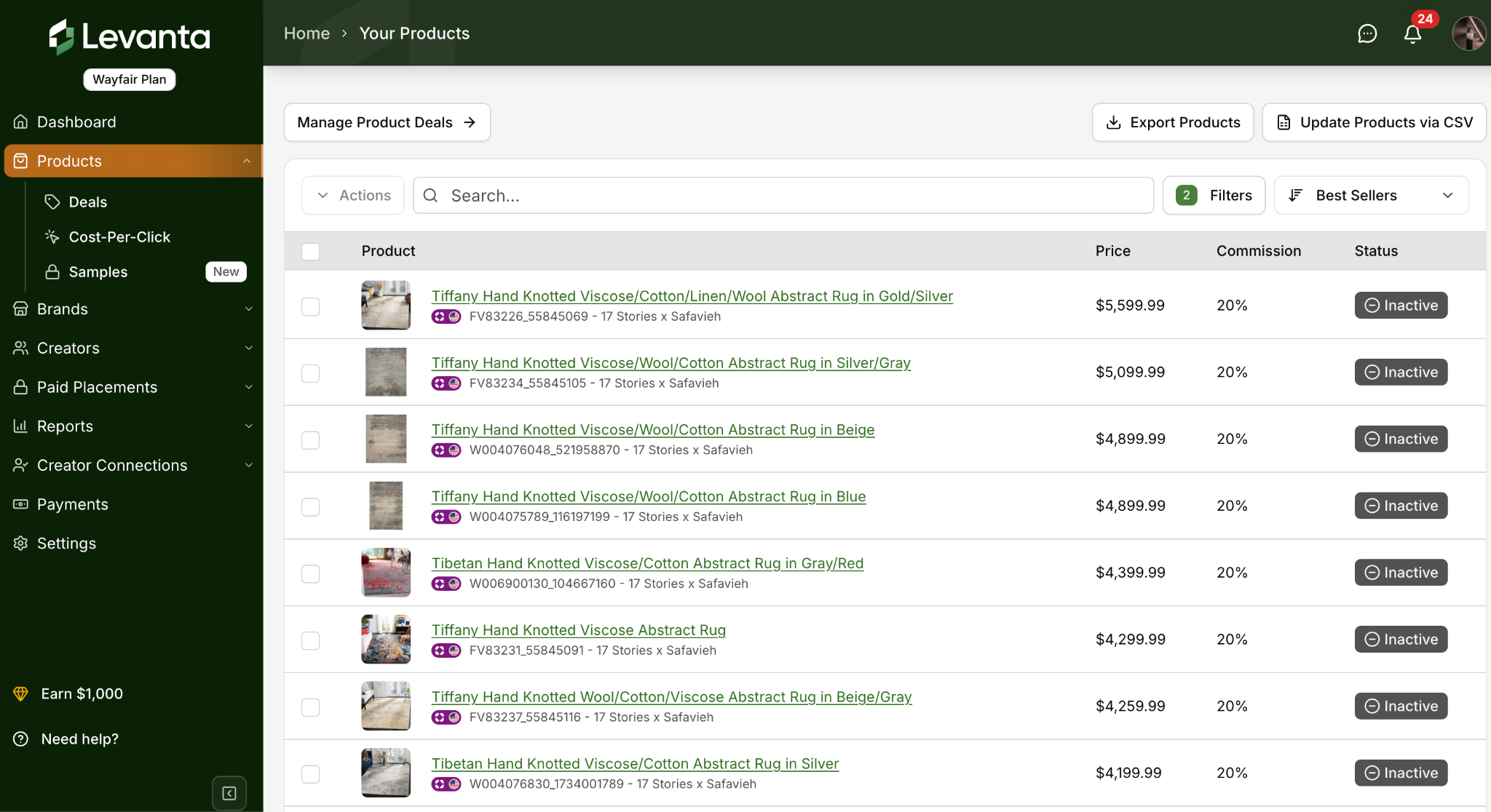
Newly synced Wayfair products appear as Inactive by default. This is intentional, as it gives you time to review the imported data and set your commission rates before products go live for creators.
To make them available, check your Inactive products and activate the ones you want creators to promote.
Set Your Initial Commission Rates
Set commission rates for your activated products. You can start by setting one rate across all eligible products, or by setting different rates by product or product group.
Recommendation: Start with a bulk rate across all activated products, then adjust over time based on performance, margin, seasonality, and product priorities.
For the full set of options, including private commissions and scheduled changes, see Managing Product Commissions for Wayfair.
Review and Launch
Before going live, confirm the following:
Wayfair account is connected
Brand profile is complete
Brand assets are uploaded
Creator approval settings are configured
Brand is activated
Products are activated
Initial commission rates are set
Questions or Need Help? Our team is here to support you! Reach out to your dedicated CSM or email us at cs@levanta.io